
Building a graph
This page is the practical walkthrough for building a graph in the Agent Studio. You will add an entry point, drop nodes from the catalog, wire them with edges, configure each one, expose the parameters you want to tune later, then run the graph and inspect what happened.
Build it step by step
Section titled “Build it step by step”-
Add an Input node. Every graph starts somewhere. Drag an Input node onto the GraphCanvas — it is where the prompt (or other input) enters the graph.
-
Add nodes from the catalog. Drag the nodes you need from the catalog onto the canvas: LLM calls, tools, conditions, merges, loops, panels, orchestrators, and more. See the Node reference for what each one does.
-
Connect with edges. Draw edges from one node’s output handle to the next node’s input handle to define the flow. Different edge types control data flow versus error routing — see Edge types.
-
Configure each node. Select a node to open the NodeConfigPanel on the right. Set its model, prompt, parameters, and any node-specific options.
-
Set exposed params. Mark the fields you want to adjust later — without editing the graph — as exposed params. These become the graph’s public knobs and are what a bound chat or an experiment can override.
-
Run it. Use the toolbar to run the graph. The ExecutionPanel streams live status as the executor works through the nodes; watch them turn over in real time.
-
Inspect outputs. Open the RunInspector / NodeInspector to read each node’s output, and the CtxStorePanel to see the accumulated context store — the key-value store nodes read from and write to.
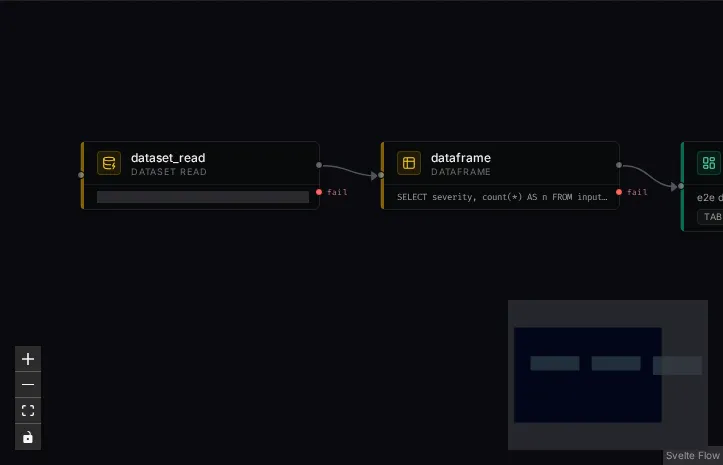
Configuring nodes
Section titled “Configuring nodes”The NodeConfigPanel is where a node becomes useful. What you see depends on the node type — an LLM node exposes a model and prompt, a tool node exposes its tool settings, a condition node exposes its branching logic. Nodes reference earlier outputs from the context store, so configuring prompts often means pulling in values produced upstream.
Exposed params: the graph’s public knobs
Section titled “Exposed params: the graph’s public knobs”Exposed params let you tune a graph from the outside. Instead of opening the editor to change a
temperature or an instruction, you expose those fields once; afterwards they can be set per chat (via
param_overrides when the graph is bound) or swept in an experiment. Expose only what you actually
want to vary — keep the rest fixed inside the graph.