
Schedules & doorbells
A graph normally runs because a person pressed something. Two things let it run without that: a schedule, which fires it on a clock, and a doorbell, which lets a system outside fire it with a signed request.
They are the same question answered from opposite sides, so they live in the same place: Deployments, under What runs on its own. Pick the graph there and both panels are below it — the graph does not have to be deployed, and most graphs with a schedule are not.
That is where deploying lives too, and on purpose: a deployment, a schedule and a doorbell are the three ways a graph goes out into the world without someone pressing run.
Schedules
Section titled “Schedules”A schedule is a five-field cron — minute, hour, day of month, month, day of week — plus the time zone it means, and an optional input the run starts with.
-
Open Deployments and pick the graph under What runs on its own.
-
Under Schedules, name it (
the morning report), write when (0 9 * * *), and create it. -
The row shows the cron, the zone, and the next time it will fire.
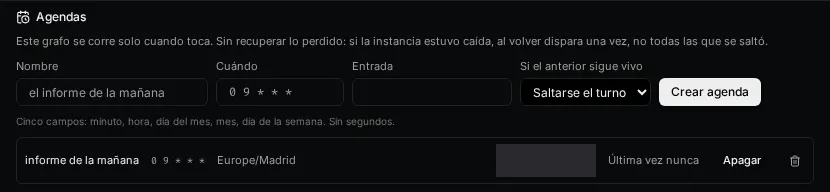
The zone is your browser’s, not UTC. A schedule written for 9 means nine o’clock where the person who wrote it lives; storing UTC would silently run the report an hour off half the year.
If the previous run is still alive, a schedule either skips its turn (the default) or queues anyway. There is no third option: everything a trigger can do is enqueue, and from a queued row onward it is the runner that decides how many run at once.
There is deliberately no “fire now” button. Running the graph already has one on the canvas, and a second path here would file a person’s run under the schedule’s name.
A bad cron is answered with an error and the reason, and nothing is saved — a schedule that exists and never runs is harder to understand than one that would not be created.
A schedule that only fails turns itself off
Section titled “A schedule that only fails turns itself off”If five runs in a row fail, the schedule switches itself off and the row says why. A run that finishes clears the count, so an occasional failure costs nothing; five consecutive ones mean something that will not fix itself — a graph with no nodes, a key that was revoked, an endpoint that moved.
The count is consecutive, not total: a schedule that has run for a year and failed nine separate times is healthy, and a new one that failed five times running is not.
Switching it back on starts the count from zero — you are saying you fixed it, and the only way to check is to let it try again. The same line carries the reason for the other automatic switch-offs too (a pattern that never occurs again, a cron that stopped parsing), which until now only reached the server log.
Doorbells
Section titled “Doorbells”A doorbell is a URL that starts the graph when something outside sends it a signed POST.
Whatever the body carries, the graph reads as {'{{body.…}}'} — so an order id posted by
your shop arrives as {'{{body.order_id}}'}.
-
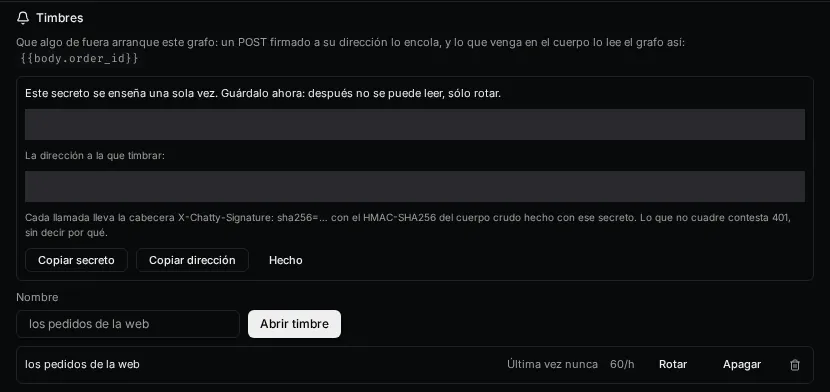
Pick the graph in Deployments, and under Doorbells give it a name and open it.
-
Copy the secret and the address. The secret is shown once.
-
On the other side, sign each call and send the signature in a header.
Signing a call
Section titled “Signing a call”Every request carries the header:
X-Chatty-Signature: sha256=<HMAC-SHA256 of the raw body, keyed with the secret>The HMAC covers the raw bytes you send, not a re-serialisation of them: two systems that order JSON keys differently would otherwise produce different signatures for the same object. In shell:
BODY='{"order_id":"A-17"}'SIG=$(printf '%s' "$BODY" | openssl dgst -sha256 -hmac "$SECRET" -r | cut -d' ' -f1)curl -X POST "$URL" \ -H "X-Chatty-Signature: sha256=$SIG" \ -H 'Content-Type: application/json' \ -d "$BODY"A successful ring answers 202 with the run’s id. That means the work is queued, not
finished; read the result back from /api/graphs/runs/{id}, which already knows about
permissions.
How many rings it accepts
Section titled “How many rings it accepts”Each doorbell takes 60 rings per hour by default, and the panel shows the number beside it. Past that, a ring answers 429 and queues nothing; the count resets an hour after the first ring of the window.
The ceiling is there because a ring is a bill: every one of them queues a run that spends the tokens of whoever opened the doorbell, and the secret lives in someone else’s system — it can leak, and that system can loop. Without a ceiling, a leak and a bug read the same on the invoice.
It is checked after the signature, on purpose. Checking it first would let anyone who knows a doorbell’s id exhaust its owner’s quota without knowing the secret, which trades a spending problem for a denial-of-service one.
If a legitimate integration rings more than that, raise it — the ceiling is a field on the doorbell:
curl -X PATCH "$API/hooks/$HOOK_ID" \ -H "Authorization: Bearer $TOKEN" \ -H 'Content-Type: application/json' \ -d '{"max_rings_per_hour": 600}'The secret, and rotating it
Section titled “The secret, and rotating it”The secret is shown when the doorbell is opened and when it is rotated, and never again — it is encrypted at rest and not even the API reads it back. A list that could show it again would be a list worth stealing.
Lost it? Rotate. That mints a new one and the old stops working immediately, so anyone still ringing with it is locked out until they are updated. This is what GitHub and Stripe do, for the same reason.
Whose authority does it run with? The person who created the doorbell. Someone outside supplies the body and nothing else — not the graph, not the workspace, not who it acts as. The body is data.
Seeing everything at once
Section titled “Seeing everything at once”The Studio catalog has an Automations section listing every schedule and every doorbell in the workspace, whichever graph it belongs to, with what runs it and when it last fired.
Nothing is created there — a row links back to Deployments with its graph already picked, which is where they are edited. It answers the other question: what fires in this workspace without anyone asking?